
Welcome to Free Planners!
We have 2024 daily planners, weekly planners, 2024 monthly calendar planners, an event planner, a project planner and a financial planner. All planners are free and printable.
Our daily, weekly and monthly calendar planners are available in PDF and PNG formats.
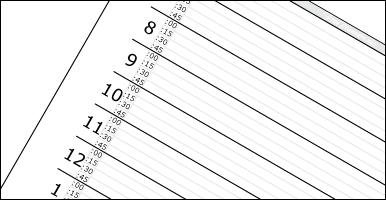
Five different styles of free daily planners including our dated 2024 daily planners which are updated monthly.
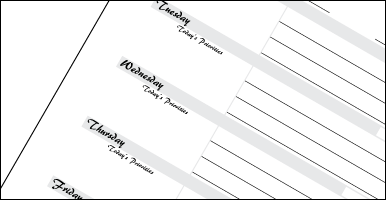
Free weekly planners available in ten different styles. Select your style and print or download your free planners.
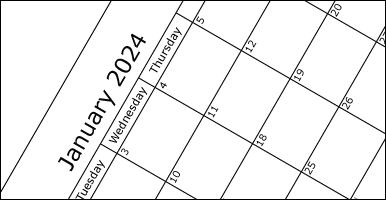
Six different styles of free monthly planners including our full sheet size 2024 monthly calendar planners. Styles include free planners with one, three or twelve months of the 2024 calendar year on each page.
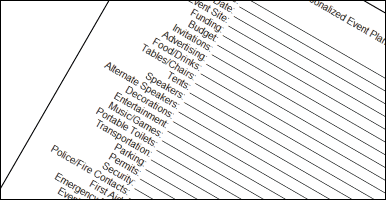
Create a free printable list of tasks related to your event. Choose from our selection of 28 possible tasks and/or add up to 20 of your own to create your free event planner.
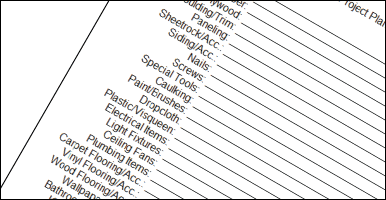
Create a free printable list of supplies and other items related to your project. Choose from our selection of 28 possible supplies and/or add up to 20 of your own to create your free project planner.
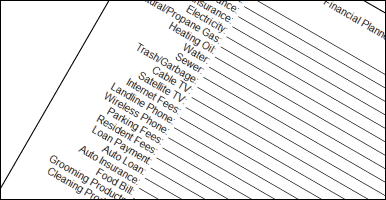
Create a free printable list of expenditures related to your household budget. Choose from our selection of 28 possible expenditures and/or add up to 20 of your own to create your free financial planner.
How To Print and Download Your Free Planners
About Free Printable Planners
Our daily, weekly and monthly calendar planners are available to be printed, copied or downloaded in both PNG and PDF formats.
Our Event, Project and Financial Planners can also be printed, but they require no special downloads. You simply complete the form on any of those pages and then you will click a button to create your planner which will open for printing in a new window or tab. For information on printing, see below.
About Daily Planners
There are five different types of daily planners from which to choose.
The first type is our dated daily planners with each printable page containing three days. Each day provides a time breakdown from 6 am to 6 pm, the dates starting with January 1, 2024, the days of the week and three months of calendars on each page.
The other daily planners are blank printable planner sheets which are not dated and are listed as styles 1 through 4.
About Weekly Planners
There are ten different styles of weekly planners from which to choose.
All of the weekly planners include each day of the week on one page. There are a few variations among the ten styles. Some have less lines to write on, but with more space between them while others have more lines and less space between. Also, some have plain text while others have a fancier text.
About Monthly Planners
There are five different styles of monthly planners and our full sheet size calendar planners. These include all twelve months of 2024.
All of the monthly planners include choices of calendars for one month, three months or for the entire year on each page.
About Event, Project and Financial Planners
Each of these planners will let you create a printable list with only the tasks you select.
There will be a list of related tasks to choose from to create your planner list. Also, there are blank text boxes to add your own tasks to your list. There is even a textbox to name your planner.
Then click or tap the button to create your printable Event, Project or Financial Planners.
How To View Free Planners
To view any of our daily, weekly or monthly planners just click or tap the appropriate planner category link above. You will see a small graphic image of each of that section's planners. There will be two links for each planner. One is for the PNG format and the other is for the PDF format. If you click your left mouse button or tap on either link, a new window or tab will open displaying a larger view of that planner.
To view an event, project or financial planner, just navigate to one of those planner pages, then select the items you want to appear on your planner. You also have the option to include as many as twenty additional items by entering each of them into one of the twenty textboxes provided. When you finish selecting and adding items, click or tap the create your planner button to create a printable page. This page will open in a new window or tab allowing you to view the planner you created.
How To Print or Download Your Free Planners
To print a planner, while viewing as described above, just right click or (on a touch device) touch and hold on or near the planner image for a menu. Then you can print, save or share the planner. You can also right click or touch and hold for a menu on any planner link as well (Except for the event, project or financial planners).